In this article, you’ll learn about possible causes of error messages when opening the paper business card ordering system – and how to fix the issue step by step.
INHALTSVERZEICHNIS
Error messages when opening the paper business card ordering system
When opening the paper business card ordering system, you may see one of the following messages:
“Please check your settings. Cookies are being blocked.”
“For security reasons, you have been logged out of the system.”
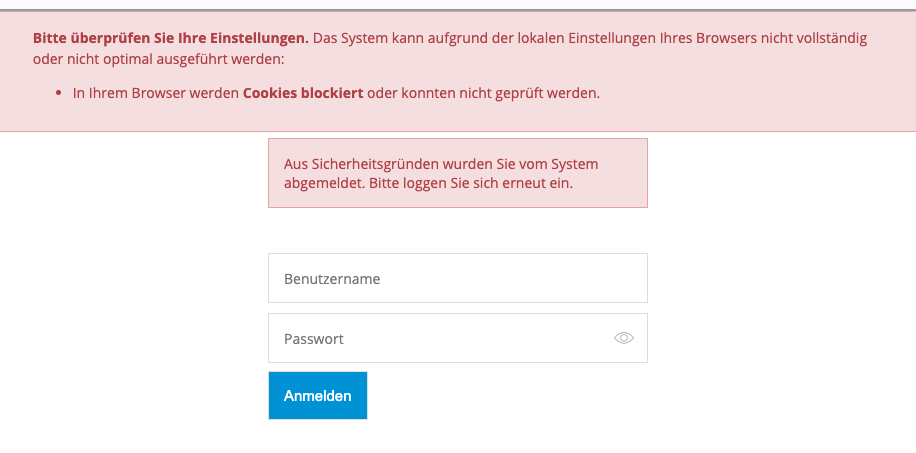
These messages appear if your browser is not allowed to store the cookies required for the module.
Troubleshooting steps
1. Test a different browser
Please try opening the ordering system in one of the following browsers:
Google Chrome
Microsoft Edge
Mozilla Firefox
Safari (Mac / iOS)
If it works there, the issue is very likely caused by a setting in the browser you originally used.
2. Important: Incognito/Private mode does not work
The paper business card module uses cookies that are often blocked by default in Incognito/Private mode in many browsers.
Please always open the module in a normal browser window, as it cannot work reliably in private mode for technical reasons.
3. Enable third-party cookies in your browser
Some browsers block third-party cookies by default. These must be allowed in the settings for the module to function correctly.
Microsoft Edge
- Open Settings.
- Go to Cookies and site permissions.
- Click on Manage and delete cookies and site data.
- Disable Block third-party cookies.
Google Chrome
- Open Settings.
- Navigate to Privacy and security → Cookies and other site data.
- Select Allow all cookies or disable Block third-party cookies.
Mozilla Firefox
- Open Settings.
- Go to Privacy & Security.
- Under Browser Privacy, set the mode to Standard (this allows third-party cookies).
– Alternatively: Under Custom, remove the checkmark next to Cookies or allow Cross-site tracking cookies and social media trackers / third-party cookies.
Safari (macOS / iOS)
Safari on macOS:
- Open Safari → Settings.
- Go to Privacy.
- Disable Prevent cross-site tracking.
- Disable Block all cookies (if available).
Safari on iPhone/iPad:
- Open Settings → Safari.
- Disable Prevent cross-site tracking.
- Disable Block all cookies.
4. Check extensions & security tools
The following components can block the module:
Ad blockers (e.g. uBlock, AdBlock Plus, Ghostery)
Tracking protection extensions
Corporate VPN or security software with web filtering
Please proceed as follows:
Disable such extensions for our site and reload the page.
If possible, briefly test the page without VPN or outside the corporate network (e.g. via mobile hotspot).
If you identify a tool or security solution as the cause, please ask your internal IT to:
add our domain to the allowlist/whitelist, or
create an exception for our platform in the VPN, web filter, or firewall.
5. Contact your IT department
If you have completed all of the steps above and the issue persists, please contact your internal IT department. In many cases, there are central security or network settings that you cannot change yourself.
6. If the issue still persists
If ordering is still not possible after all of the above steps, there may be a technical issue.
Please contact us at support@lemontaps.com and ideally include the following information:
Browser and version (e.g. “Chrome 125”)
Operating system (e.g. Windows, macOS, iOS, Android)
Whether a corporate VPN is being used
Whether multiple colleagues are affected
Whether access works via a private network (hotspot / home Wi-Fi)
This helps us to identify the cause more quickly and support you more efficiently.
Was this article helpful?
That’s Great!
Thank you for your feedback
Sorry! We couldn't be helpful
Thank you for your feedback
Feedback sent
We appreciate your effort and will try to fix the article