In this article, you'll learn how to add users to your team who have created their own account using your company’s business email domain.
INHALTSVERZEICHNIS
- How can this happen?
- What is Account Claiming?
- Step 1: Verify your domain
- Step 2: Enable Account Claiming
How can this happen?
- An employee can visit our website and create a free account using the “Start for free” option.
- If they use their company business email address, a personal user account is created — but it is not automatically assigned to your team account.
- As a result, the user does not appear in your central Management Dashboard and cannot be managed from there.
What is Account Claiming?
Account Claiming allows you to automatically assign user accounts to your team when employees register on their own using your company’s business email domain. This ensures that all user accounts are centrally managed and part of your organization.
Step 1: Verify your domain
Before you can use Account Claiming, your company domain must be verified.
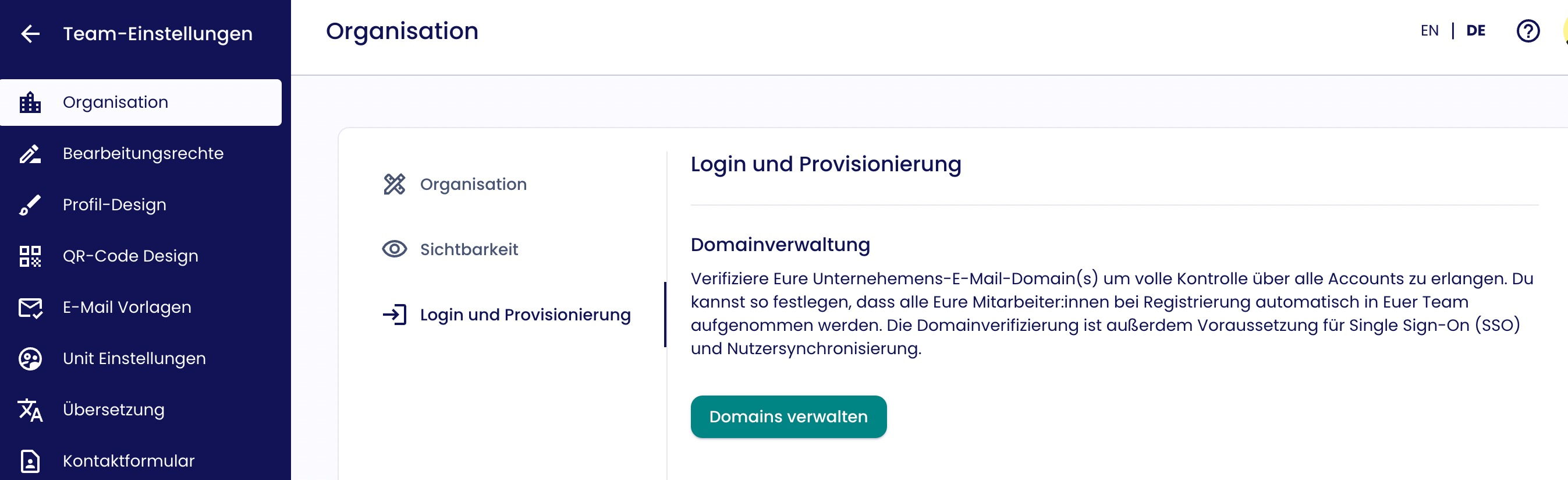
1. Go to Organization > Login & Provisioning and open Manage Domains under Domain Management.
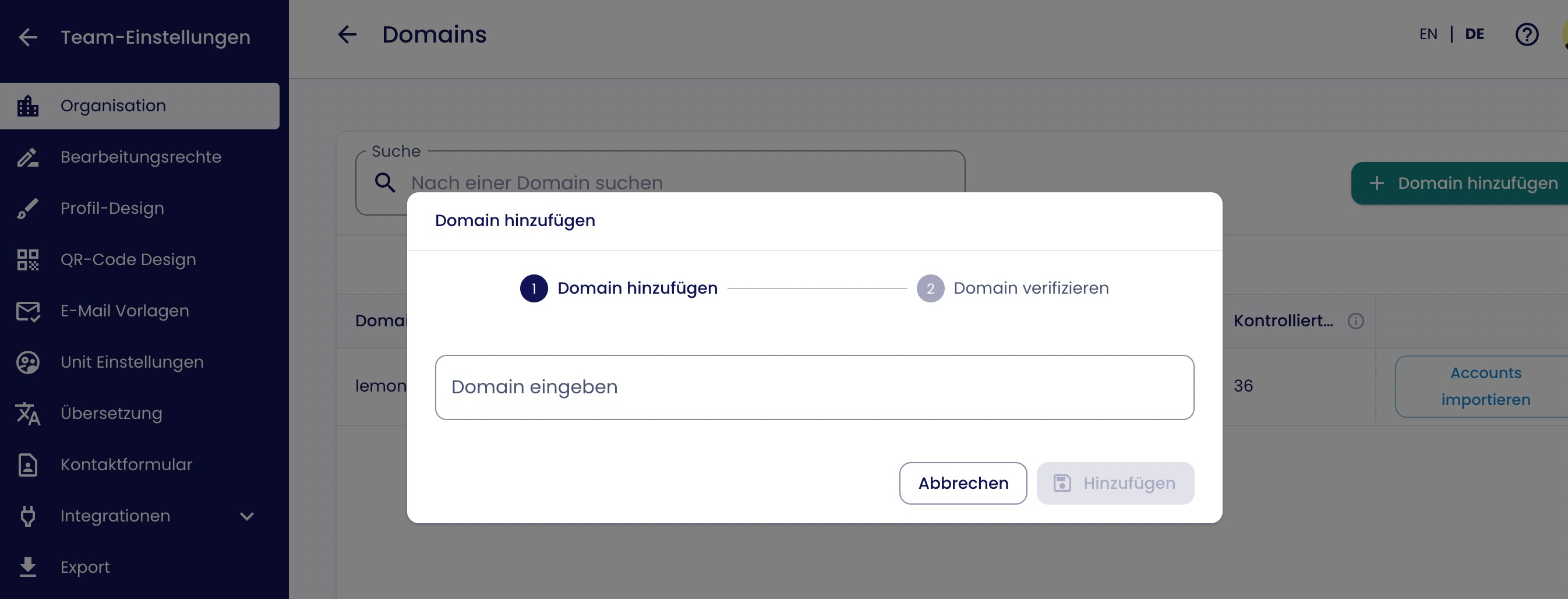
2. Click Add Domain.
3. Enter your company domain (e.g., companyname.com) and confirm with Add.
4. Copy the displayed DNS records and add them to your DNS provider’s management system. The DNS entry must remain in place permanently, as it may be checked regularly.

5. Once the domain is verified, the status will change to Verified.

Step 2: Enable Account Claiming
After your domain is verified, you can choose how newly created or existing accounts should be assigned to your team.
You have two options:
Automatic: New users who register with your domain are automatically added to your team (or a specific unit).
Manual: You review which users have registered and assign them manually.
a) Enable automatic Account Claiming
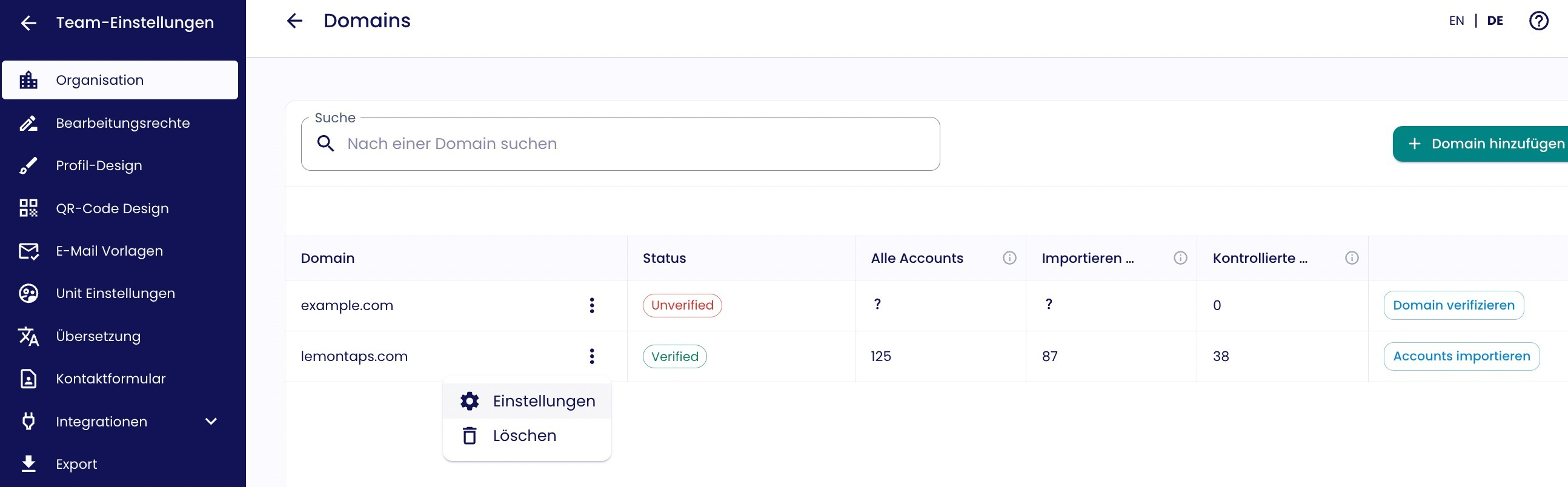
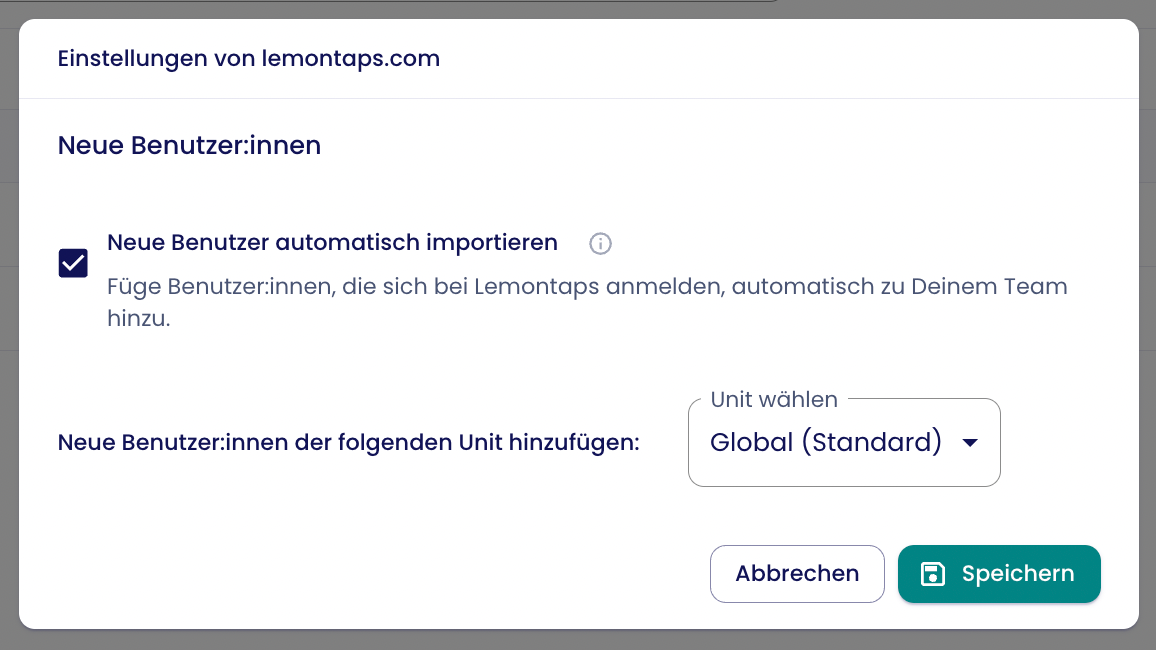
Open the Settings of the verified domain via the three-dot menu.
Enable the option to automatically add new users to your team.
Make sure they are assigned to the correct unit (e.g., Global (Standard)).
b) Manual Account Claiming
1. Click Import Accounts.
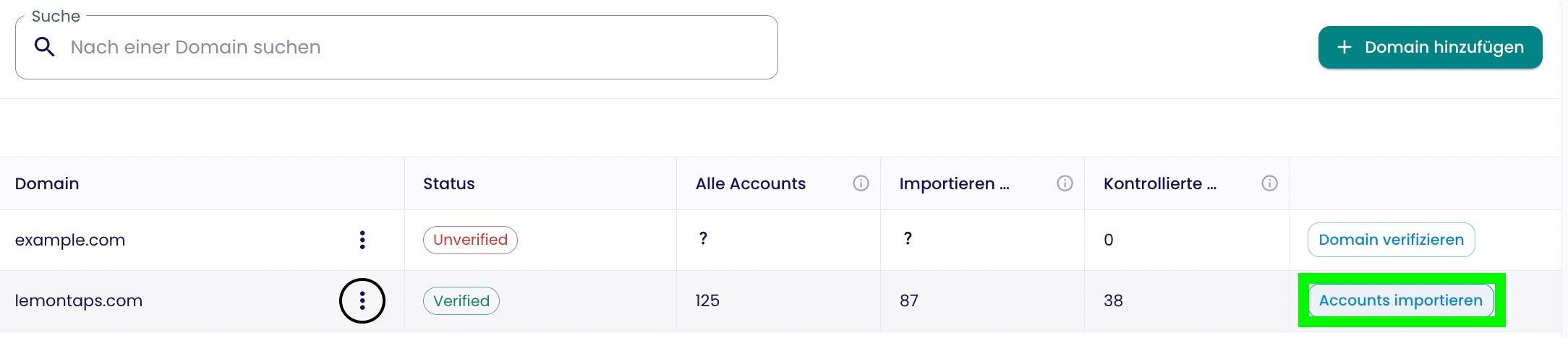
2. Under Review Accounts, download the list (e.g., Excel file) of all users who registered using your domain.
3. Select whether to import all accounts or only specific ones.
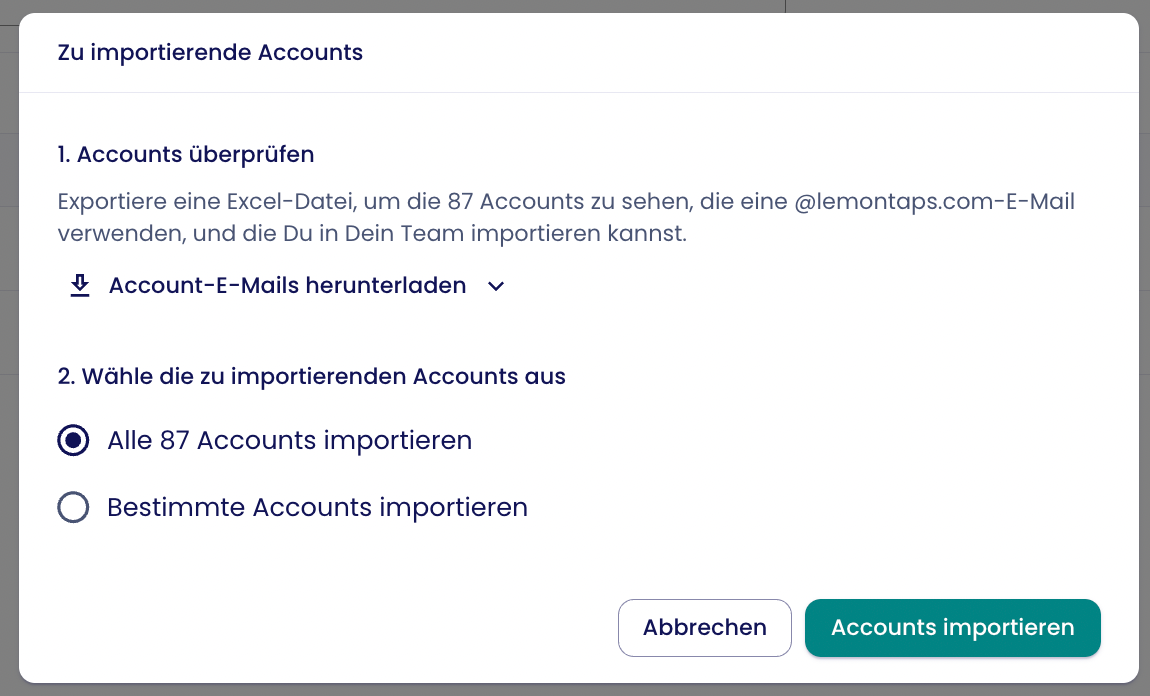
4. Complete the import. After import, the users will appear in your User Overview.
Was this article helpful?
That’s Great!
Thank you for your feedback
Sorry! We couldn't be helpful
Thank you for your feedback
Feedback sent
We appreciate your effort and will try to fix the article