TABLE OF CONTENTS
- 1. Requirements
- 2. Overview of the integration
- 3. Linking Lemontaps with Salesforce
- 4. Settings in Lemontaps
- 5. FAQs
1. Requirements
Note: Please make sure that you have API access to one of the Salesforce editions in order to be able to use the integration with Lemontaps: See Salesforce editions with API access here. You must also have administrator rights to set up the link.
2. Overview of the integration
With the Salesforce integration, either only administrators or also end users can push the contacts recorded with Lemontaps to Salesforce as leads or contacts either automatically or manually. This works for both the mobile version and the desktop version.
User Journey:
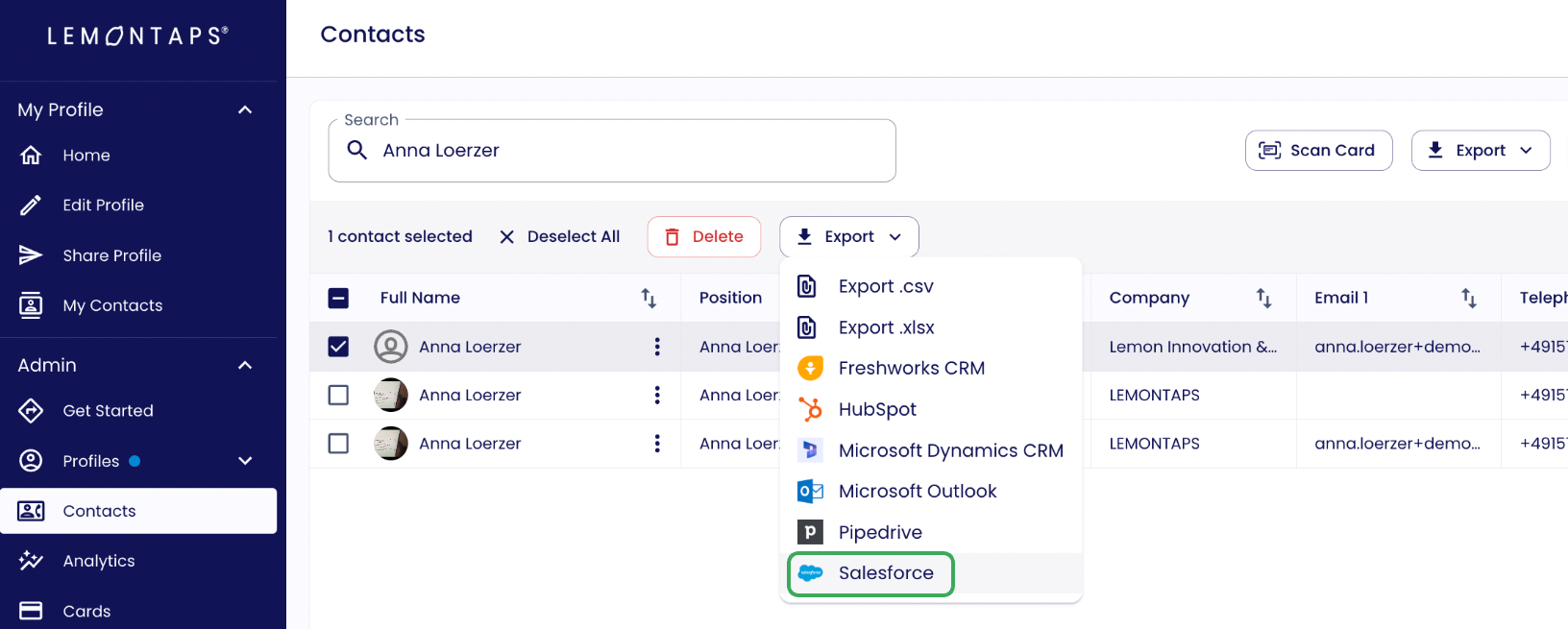
- Case 1 - Manual push: If you have set the “manual push”, you select the contacts to be exported in the contact overview of the admins as well as in the end user contact overview using the checkboxes and then click on Salesforce. The export is then started.
- Case 2 - Automatic push: If you have selected “automatic push” in the settings, the push to Salesforce is started automatically for every new contact. Previous contacts are not pushed automatically. If you want to have the previously recorded contacts in the CRM as well, you would have to push them once.

- Status of the export: In the contact table, you can see the status in the “Export” column. If you click on the symbol, you can see further information, e.g. when the export took place. If there is an exclamation mark behind the Salesforce symbol, you can see that the export has failed. If you manually push the contacts, you will also always receive an email with the number of contacts for which the export worked/failed.


The following attributes are transferred:
| Predefined fields in Lemontaps | contact | Lead |
| Notes | Yes (in the Description field) | Yes (in the Description field) |
| Name prefix | Yes | Yes |
| First name | Yes | Yes |
| Last name | Yes | Yes |
| Position | Yes | Yes |
| Role | No | No |
| Department | Yes | No |
| Company | No | Yes |
| Yes | Yes | |
| Email work | No | No |
| Phone work | Yes as "Phone" | Yes as "Phone" |
| Phone Mobile | Yes as "Phone" | Yes as "Phone" |
| Fax | Yes | Yes |
| Website | No | Yes |
| Addressee | No | No |
| Address line 1 | Yes | Yes |
| Address line 2 | No | No |
| Zip code | Yes | Yes |
| City | Yes | Yes |
| Country | Yes | Yes |
| DSGVO | No | No |
| Language | No | No |
| Profile picture | Yes (appears under “Notes & Attachments” and "Files") | Yes (appears under "Files") |
| Paper business card image | Yes (appears under “Notes & Attachments” and "Files") | Yes (appears under "Files") |
| File attachments | Yes (appears under “Notes & Attachments” and "Files") | Yes (appears under "Files") |
| Met on | Yes | Yes |
| Met by | is created as “Contact Owner” if the Lemontaps user's account email is also a Salesforce user. If the Lemontaps user's account email is not a Salesforce user, the Salesforce user who set up the Lemontaps - Salesforce integration is used as the owner. | Is created as “Lead Owner” if the Lemontaps user's account email is also a Salesforce user. If the Lemontaps user's account email is not a Salesforce user, the Salesforce user who set up the Lemontaps - Salesforce Integration is used as the owner. |
Lead Source: Lemontaps (Will be added automatically) | Lead Source: Lemontaps (Will be added automatically) |
User-defined fields:
If you have created custom fields in Salesforce itself, you can also make them visible in the Lemontaps lead form.
- Navigate to Contact Form → Internal Contact Form.
- Click on “Re-import CRM fields”.
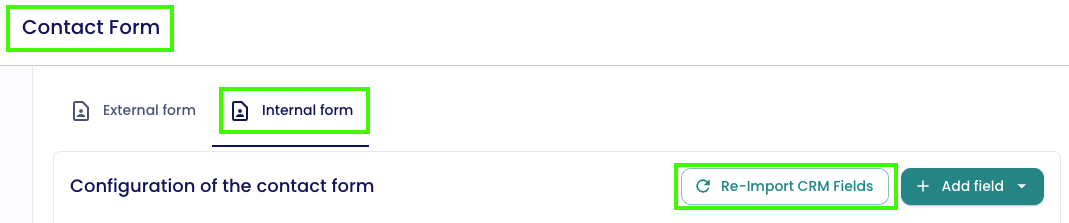
- Then click on “Add field” → “CRM Custom Field” and select the custom field you want to add.
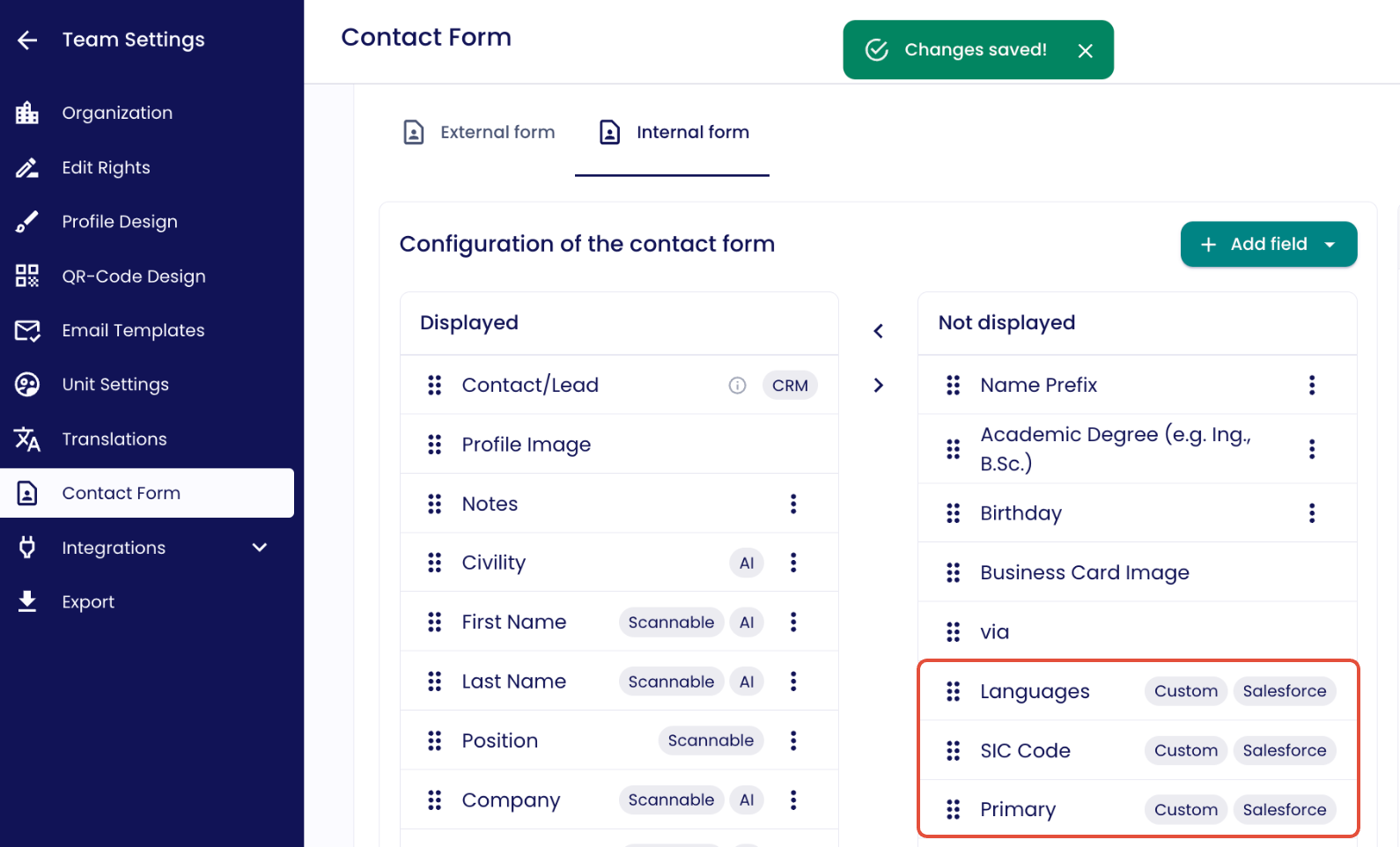
The custom fields from Salesforce will then be displayed in Lemontaps.
If you now fill in the custom fields via the Lemontaps lead form and export the contact to Salesforce, the correct field will be filled in.
Duplicates:
If there is already a contact/lead in Salesforce with the same email address as the contact to be pushed from Lemontaps to Salesforce, then the export will not work as duplicates are prevented. In this case, the reason is also displayed in the export column. In the case of a manual push, you will also receive an email as to whether there were duplicates during the export.

Campaigns:
It is possible to assign contacts that are pushed to Salesforce to a campaign.
To do this, go to “Contact Forms” and scroll down to “Campaign Assignment.”
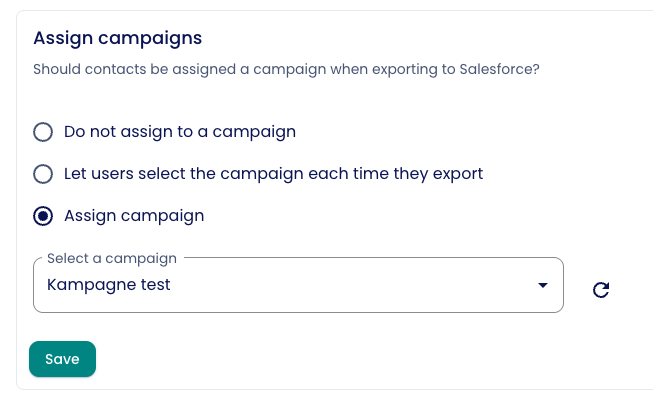
Here, you have the following options:
- Select one specific campaign that will be applied to all exports to Salesforce.
- Choose for each export individually whether a campaign should be assigned and which one.
- Export contacts without assigning any campaign.
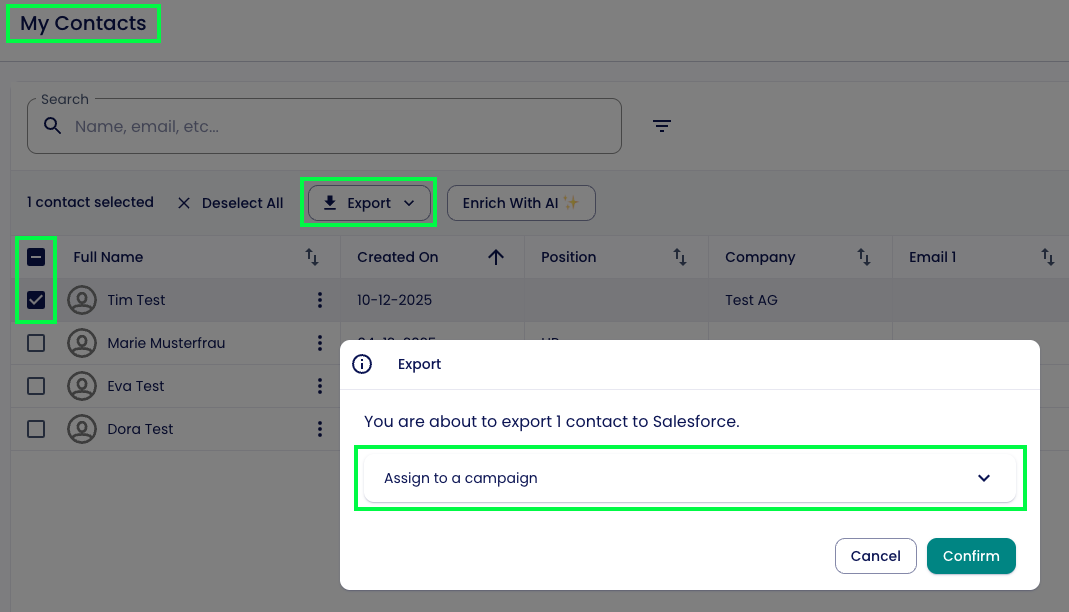
If you select the option to choose a campaign individually for each export, you can do this later under “My Contacts” (and for admins, also under “Contacts”).
3. Linking Lemontaps with Salesforce
- Navigate to the CRM integration page.
- Click on Salesforce

- Now click on “Authorize Salesforce”

- A popup from Salesforce will now appear. Enter your login details. In most cases, you must have administrator rights with Salesforce.
- Now authorize Lemontaps in the following popup.

- Voilá Salesforce is now connected. You can now close the popup. Please note: You do not need to do anything in the “Leads”, “Contacts” etc. fields.

4. Settings in Lemontaps
You have the following setting options in Lemontaps:
- Automatic or manual export to Salesforce
- Should contacts be created as leads or as contacts in Salesforce or do you want to leave it up to the user?
Rights: Are individual users also allowed to transfer contacts to Salesforce or only admins?
You can set the first 2 points here and the editing rights here.
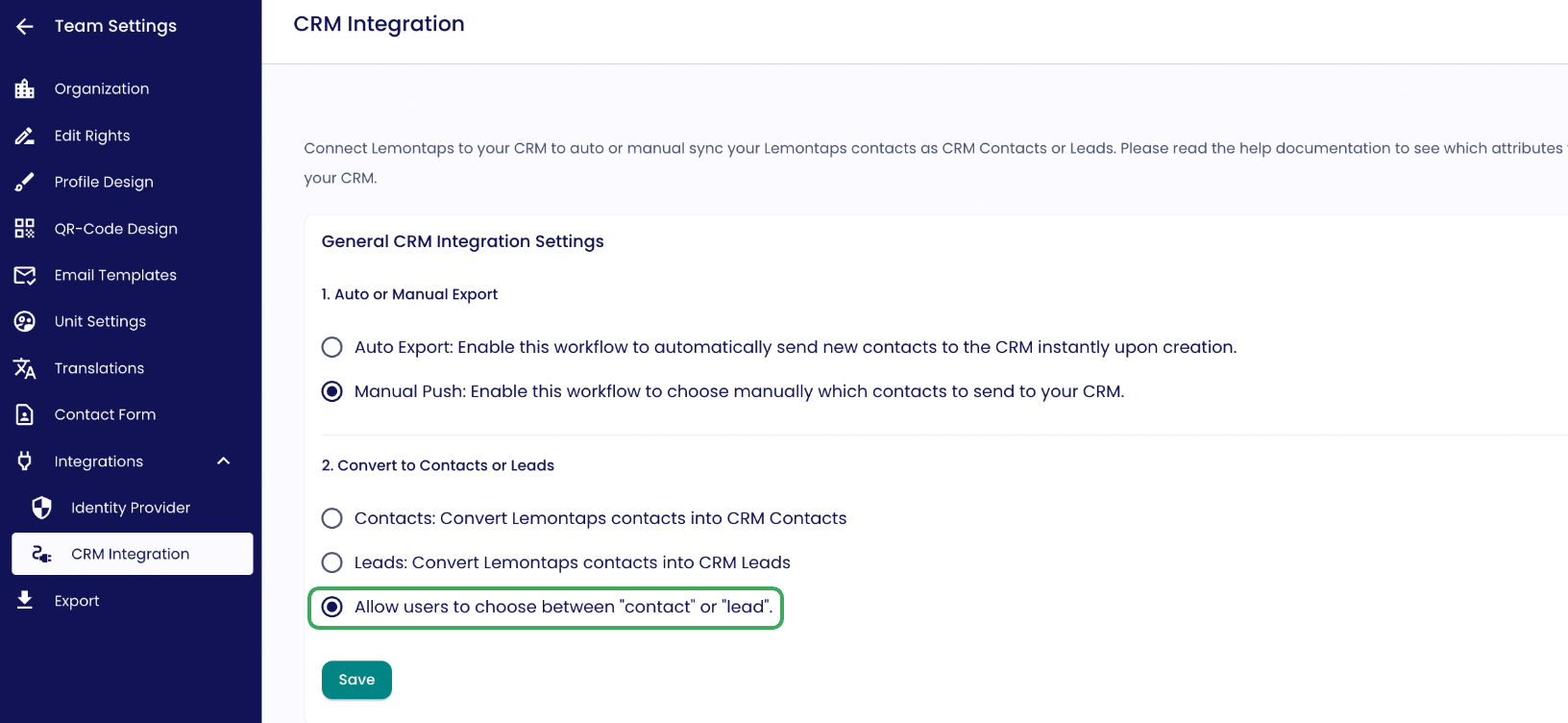

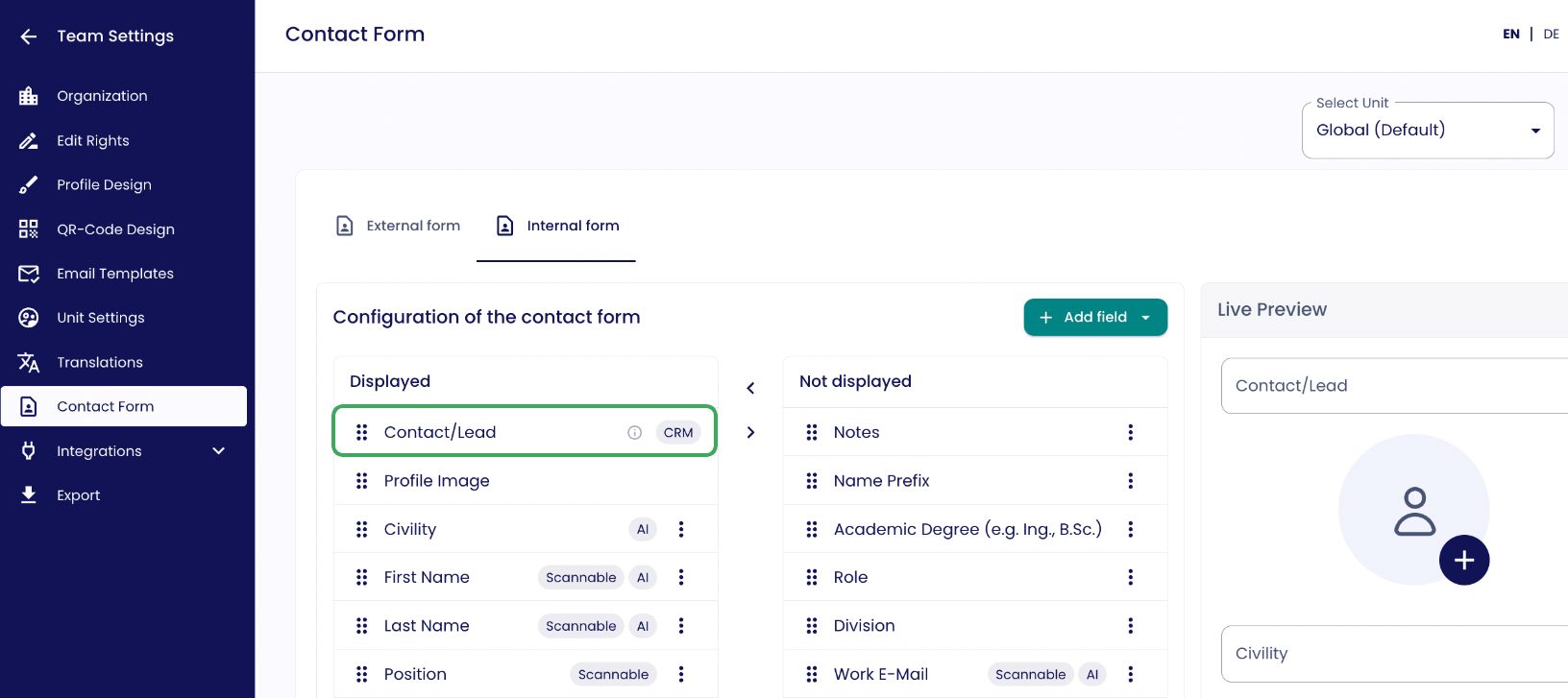
If you select the 3rd option Allow users to choose between ‘Contact’ and ‘Lead’, then navigate to the internal form and move the ‘Contact/Lead’ field to ‘Show’.
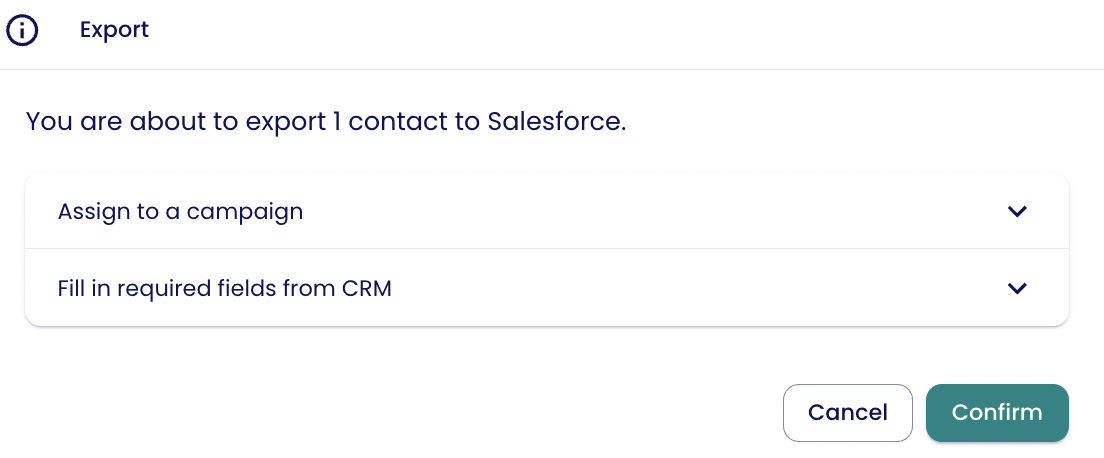
Exporting contacts to a CRM system
When exporting a contact, e.g. to Salesforce, a selection option now appears.
The user must specify whether the contact is exported as a lead or as a contact.
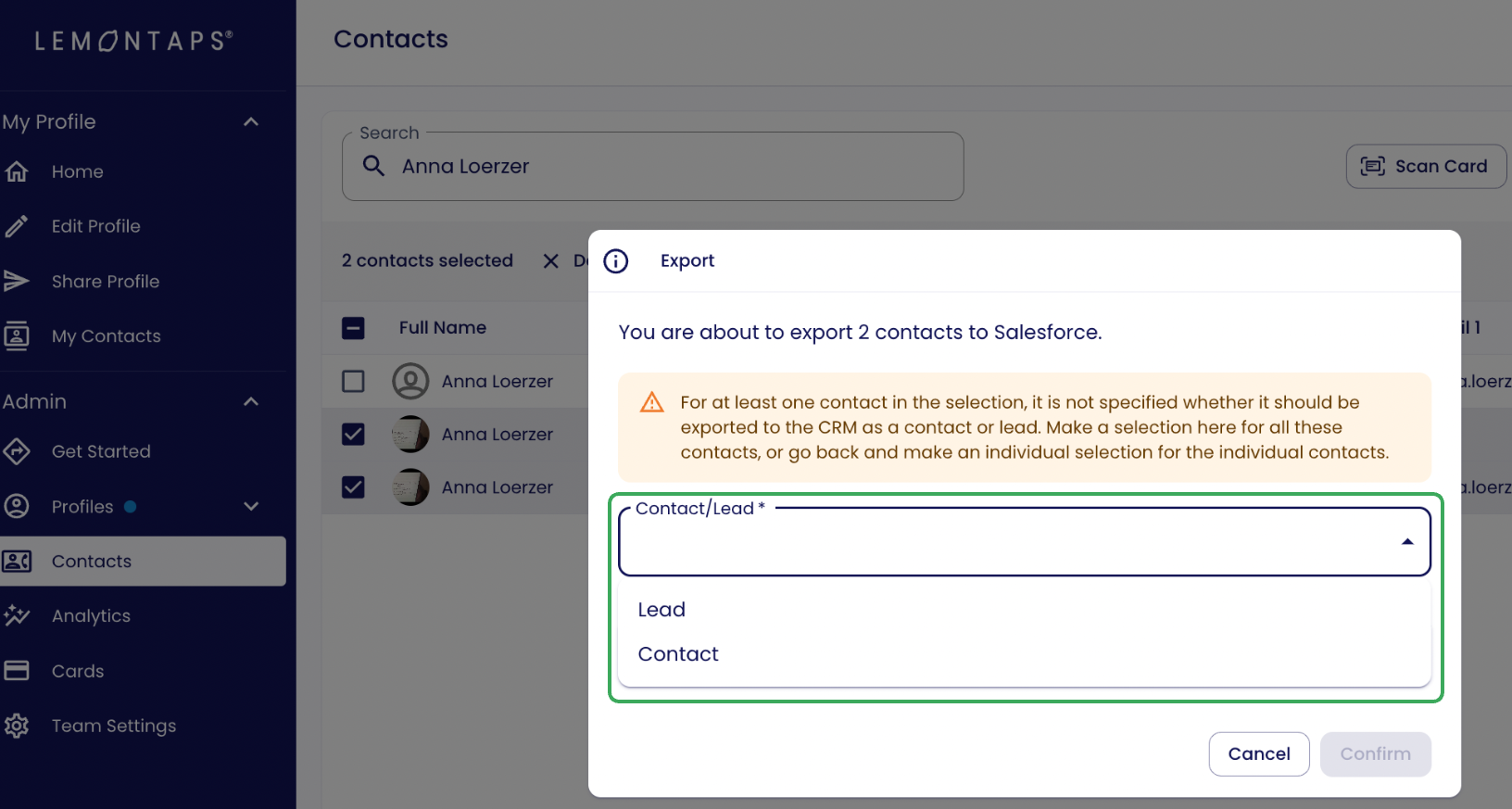
After the export, the selected option is displayed in the system.

Automatic assignment when creating a contact
If the selection was already made when the contact was created in Lemontaps, there is no need to ask again when exporting.
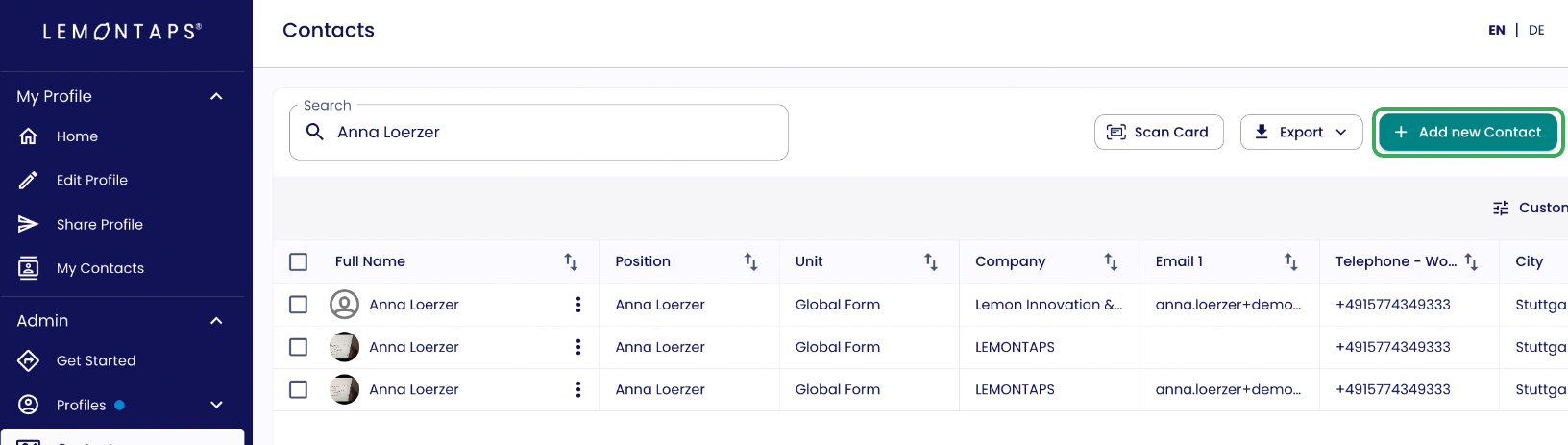
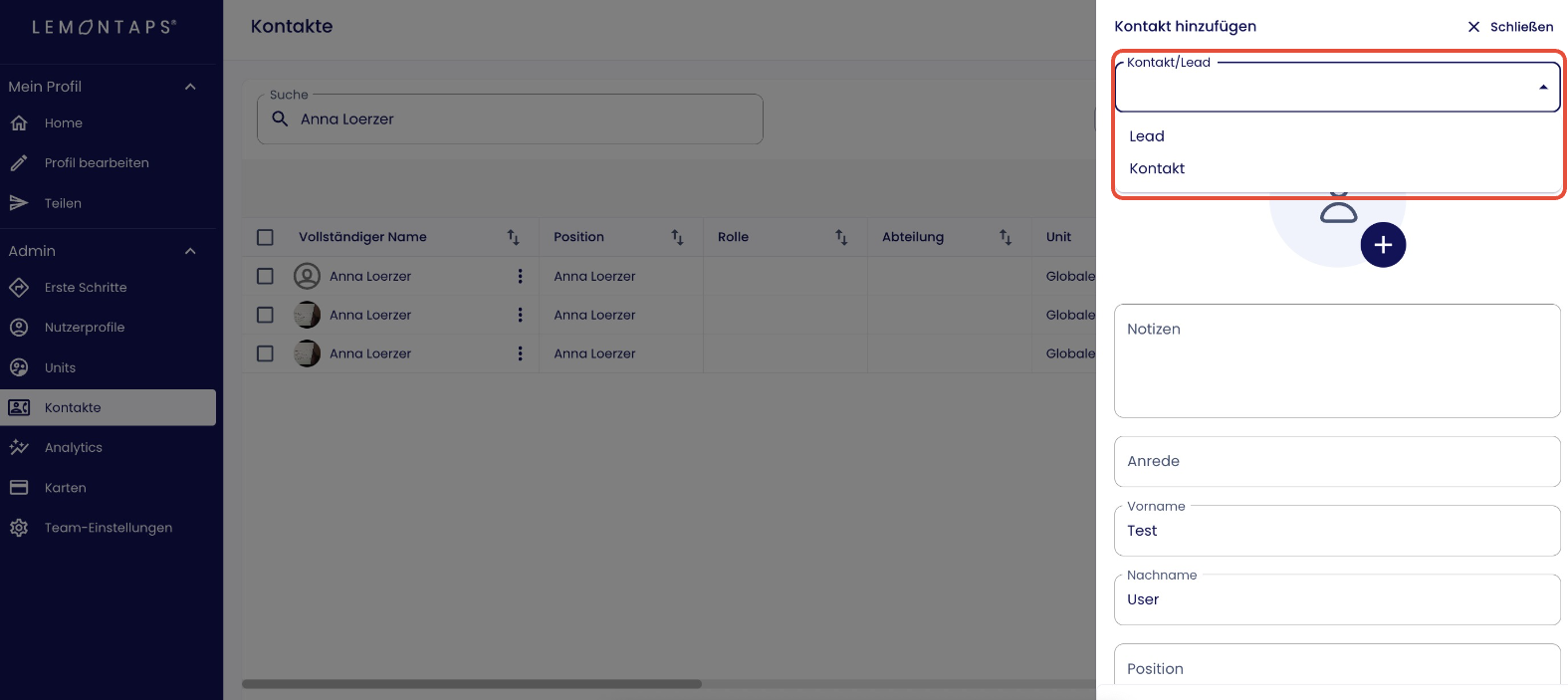
The assignment is then made automatically.

The ability to specify the export option when creating a contact makes the process more efficient and transparent.
5. FAQs
My export has failed, what could be the reasons for this?
Note: If an export fails, an error message will be displayed. You can view the details by going to “Contacts” and clicking the small icon in the “Exports” column.
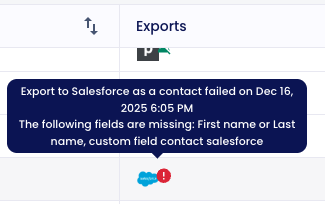
1) Missing information in the contact in Lemontaps:
- For contacts, at least one name must be provided in the Lemontaps contact - either a first name or a last name - as well as all other fields marked as required. Otherwise, issues may occur during export.
For leads, at least the company name and one name (first or last name) must be provided in the Lemontaps contact, along with all other required fields. If these requirements are not met, the export will fail.
2) Duplicate:
- The email address of the contact in Lemontaps already exists in Salesforce for a lead or contact. It may be that the email address also exists elsewhere in Salesforce and therefore prevents the export - in this case you should check your own Salesforce rules to see how the duplicate settings were made.
3) Refresh:
- With automatic synchronization, it is sometimes necessary to refresh the page to see the corresponding icon if, for example, a new contact has been created.
- Updates to contacts in Lemontaps are not automatically updated in CRM.
4) Error Message – INVALID FIELD:
5) Other reasons:
- It may still not work. Try exporting the contact again. If it still does not work, please contact support@lemontaps.com.
What happens to duplicate entries?
The export stops as soon as a duplicate email address is indexed. No new contact will be added in the CRM. Therefore, the current contact won't be updated.
Can duplicates be updated?
No, duplicates won't be updated in the CRM. The Lemontaps contact won't get exported – The action fails.
Is the Integration GDPR-Compliant?
Yes, it is. You can find more information here.
How do I handle required fields from Salesforce?
If you have defined required fields in Salesforce, these fields will automatically appear in the setup popup in Lemontaps.
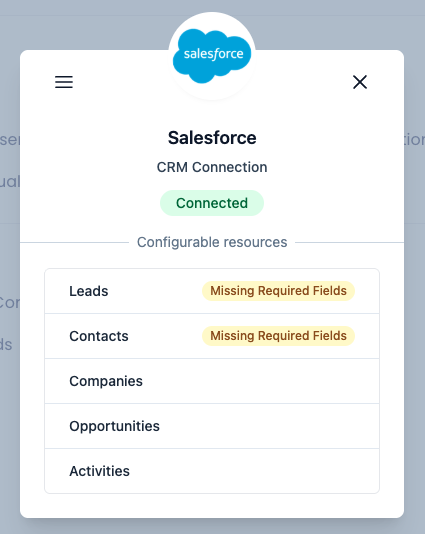
You have several options to handle them:
- Use the same values for all leads/contacts
- Enter the desired values directly in the popup.
- These values will then be applied to all contacts or leads exported to Salesforce.
- Collect required fields individually in the lead capture form
- If these required fields are important for your process, you can add them directly to the Lemontaps lead capture form so they are filled in during contact creation.
- Navigate to Contact Form → Internal Contact Form.
- Click “Re-import CRM fields”.
- Click “Add field” → CRM Custom Field.
- Select the custom field you want to add.
This ensures that your colleagues fill in all required fields directly during lead capture, preventing export errors later on.
Was this article helpful?
That’s Great!
Thank you for your feedback
Sorry! We couldn't be helpful
Thank you for your feedback
Feedback sent
We appreciate your effort and will try to fix the article