In this article, you’ll learn how to correctly link your Lemontaps NFC business card to your user profile.
Step-by-step: Linking via smartphone
1. Scan the QR code or NFC card
Open the camera app on your smartphone.
Hold the camera over the QR code on the card or tap the NFC card to your phone.
You will be automatically redirected to the linking page.
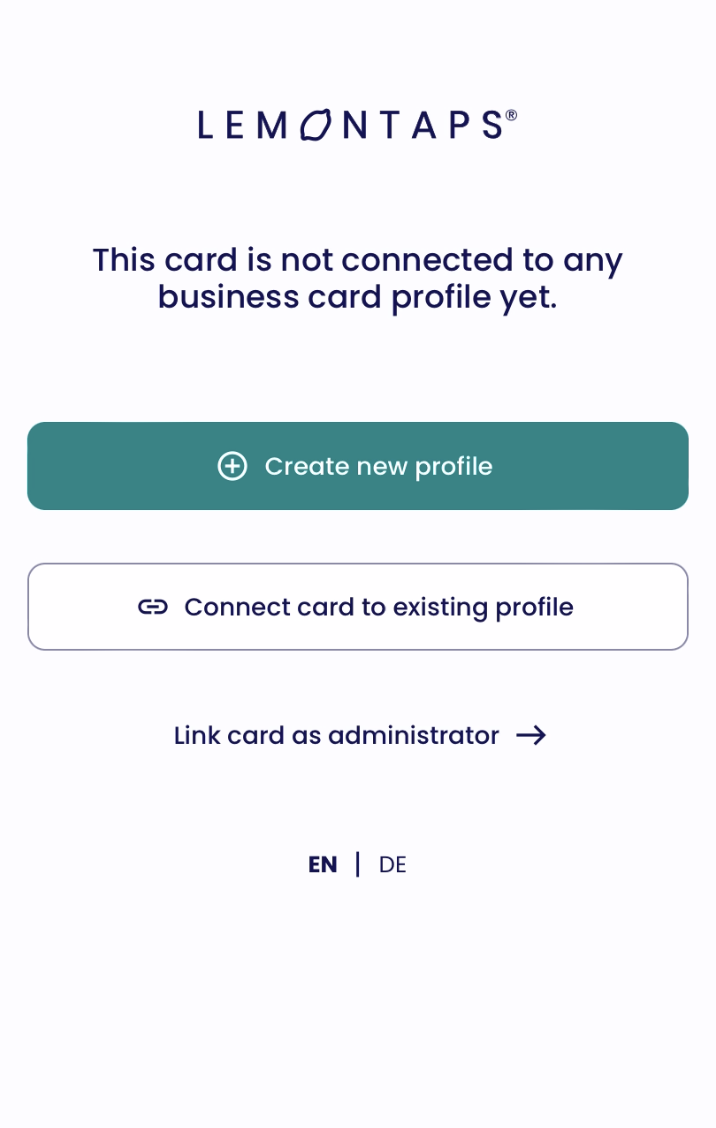
2. Choose how you want to link the card
a) Link to an existing profile
If you already have a profile:
Click “Connect card to existing profile”.
Log in to your account.
The card will be automatically linked to your profile.
b) Link to a new profile
If you don’t have a profile yet:
Click “Create new profile” and set up your profile.
After creation, the card will be automatically linked.
Important note
With some NFC cards - such as cards with a white QR code, wooden cards, or low contrast designs - laptop cameras may have difficulty recognizing the code.
Recommendation: Use your smartphone camera. It is usually much more reliable than a laptop camera.
Was this article helpful?
That’s Great!
Thank you for your feedback
Sorry! We couldn't be helpful
Thank you for your feedback
Feedback sent
We appreciate your effort and will try to fix the article