.svg)
Requirements: Administrator · Paid plan · Sales Add-on
1. Overview of the integration
With the Pipedrive integration, either only administrators or also end users can push the contacts recorded with Lemontaps to Pipedrive as leads or contacts either automatically or manually. This works for both the mobile version and the desktop version.
User Journey:
- When manual push is enabled, select the contacts you want to export using the checkboxes in both the "Admin contact overview" and the "End-user contact overview", then click on Pipedrive.
The export will then be initiated. - Case 2 - Automatic push: If you have selected “automatic push” in the settings, the push to Pipedrive is started automatically for every new contact. Previous contacts are not pushed automatically. If you want to have the previously recorded contacts in the CRM as well, you would have to push them once.
The automatic export is only triggered once the contact has been fully saved, meaning after clicking Save on the additional information screen. This applies both when creating a contact using the business card scanner and when creating a contact manually. The export then takes place with a delay of approximately 5 minutes. This means that a contact is not transferred to the CRM immediately after scanning, but only once the contact capture process has been completed.

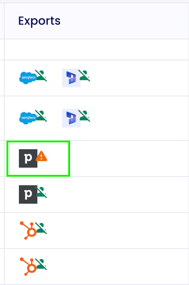
- Status of the export: In the contact table, you can see the status in the “Export” column. If you click on the symbol, you can see further information, e.g. when the export took place. If there is an exclamation mark behind the Pipedrive symbol, you can see that the export has failed. If you manually push the contacts, you will also always receive an email with the number of contacts for which the export worked/failed.


The following attributes are transferred:
| Predefined fields in Lemontaps | contact |
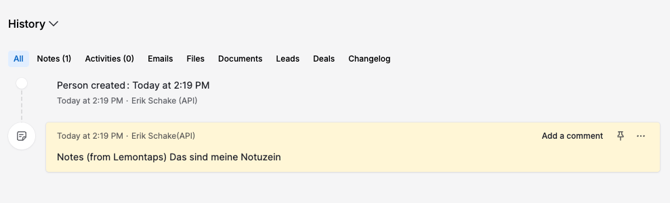
| Notes |
Yes, visible under Activities in the timeline:
|
| Name prefix | Yes |
| First name | Yes |
| Last name | Yes |
| Position | No |
| Role | No |
| Department | No |
| Company | Yes |
| Yes | |
| Email work | No |
| Phone work | Yes as "Phone" |
| Phone Mobile | Yes as "Mobile" |
| Fax | Yes |
| Website | No |
| Addressee | No |
| Address line 1 | No |
| Address line 2 | No |
| Zip code | No |
| City | No |
| Country | No |
| DSGVO | No |
| Language | No |
| Profile picture | Yes (appears as profile picture) |
| Paper business card image | Yes (appears under "Files") |
| File attachments | Yes (appears under "Files") |
| Met on | Yes |
| Met by | is created as “Contact Owner” if the Lemontaps user's account email is also a Pipedrive user.
If the Lemontaps user's account email is not a Pipedrive user, the Pipedrive user who set up the Lemontaps - Pipedrive integration is used as the owner. |
Custom fields:
If you have created custom fields in Pipedrive itself, you can also make them visible in the Lemontaps lead form.
- Navigate to Contacts → Contact Fields → Internal Contact Form.
- Click on “Re-import CRM fields”.
- Then click on “Add field” → “CRM Custom Field” and select the custom field you want to add.
The custom fields from Pipedrive will then be displayed in Lemontaps.
Automatically Transfer Scan, AI & Event Data to Your CRM
Lemontaps can automatically transfer scan, AI enrichment, and event results to CRM fields during export. You set up the mapping once — after that, everything runs automatically.
The setup is done in the Contact Form. For a step-by-step guide, see the article Map Scan, Enrichment & Event Results to CRM Fields.
Export Contacts as Leads
In addition to the standard contact export, you can also export Lemontaps contacts to Pipedrive as leads. Since a lead in Pipedrive must always be linked to a contact person, Lemontaps automatically checks whether this contact person already exists during the export:
- Contact person does not exist yet: Lemontaps creates both the contact person and the lead in Pipedrive and automatically links them.
- Contact person already exists as a contact in Pipedrive: Lemontaps additionally checks whether a lead already exists for this contact. If no lead exists yet, a new lead is created and automatically linked to the existing contact.
- Lead already exists (duplicate): You can define how duplicates should be handled under section 5, "Update existing CRM contact", in the additional CRM integration settings (see the "Duplicates" section).
Automatically Export Organizations
When exporting a contact to Pipedrive, the associated organization (company) can be transferred automatically:
- During the export, Lemontaps first checks whether a matching organization already exists in Pipedrive.
- The legal suffix (e.g. "GmbH", "AG") is removed from the company name before matching.
- Fuzzy matching is used to determine whether the same or a similar organization already exists, for example if there are differences in capitalization.
- If a matching organization is found, the contact is assigned to it.
- If no matching organization is found, Lemontaps automatically creates a new organization.
Important: The automatic matching does not recognize when two different company names refer to the same company. In such cases, two separate organizations may be created in Pipedrive.
Custom fields without CRM mapping
Fields from your Lemontaps lead form that are not linked to Pipedrive (e.g. trade show–specific information) are not automatically transferred to the CRM. If you don’t want to create a dedicated field for these in Pipedrive, you can instead store this information in the notes field of Hubspot.
You can find the relevant setting here under section 3 “Custom Fields.”

Permissions
Can individual users also transfer contacts to Pipedrive, or only admins?
You can configure this in the settings for editing permissions here (Point 12).
Automatic / Manual Export
Should newly captured contacts be exported to Pipedrive automatically or manually?
You can define this here under section 1.
Duplicates:
If there is already a contact/lead in Pipedrive with the same email address as the contact you want to push from Lemontaps, you can define how this should be handled under section 5, “Update existing CRM contact”, in the advanced settings of the CRM integration:
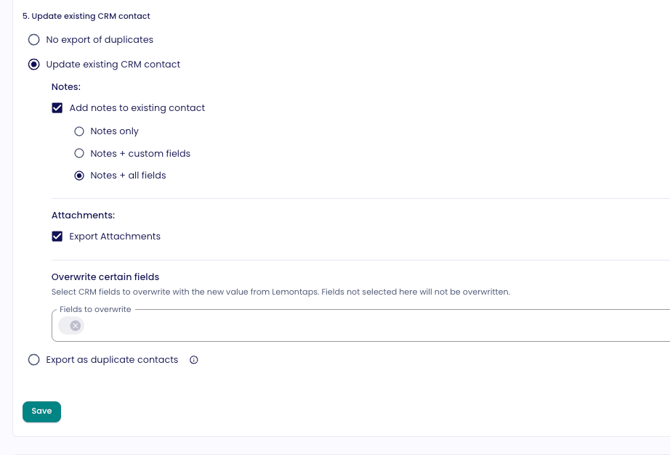
- Do not export duplicates
- The export will not be performed, and the reason will be displayed in the export column. For manual exports, you will also receive an email notification.
- Update existing CRM contact
- Instead of canceling the export, the existing contact/lead in Pipedrive will be updated. The following options can be enabled independently:
- Notes: Enable “Add notes to existing contact” and select what should be transferred (Notes only / Notes + custom fields / Notes + all fields).
- Attachments: Enable “Export attachments” to also transfer files such as the profile picture or business card image.
- Overwrite specific fields: Use the “Fields to overwrite” field to select which Pipedrive fields should automatically be overwritten with the new value from Lemontaps. Fields that are not selected will not be overwritten.
- How to set it up: 1. Navigate to Contacts → CRM Integration → Advanced Settings. 2. Scroll down to section 5, “Update existing CRM contact,” and select this option. 3. Scroll down to “Overwrite specific fields” and select the desired fields from the “Fields to overwrite” dropdown. 4. Click “Save.”
- From now on, whenever the contact is exported again, each selected field will automatically be overwritten with the current value from Lemontaps. This is useful, for example, if a contact attends a new event and should automatically be synchronized with the latest event data.
- Important: First name and last name cannot be overwritten individually. They must be stored as one combined value (first and last name together).
- Instead of canceling the export, the existing contact/lead in Pipedrive will be updated. The following options can be enabled independently:
- Export as duplicate contacts
- The contact will be created as a new, additional contact/lead regardless of the existing duplicate.
2. Linking Lemontaps with Pipedrive
- Navigate to Contacts → CRM Integration.
- Click on Pipedrive

- Now click on “Authorize Pipedrive”

- A popup from Pipedrive will now appear. Enter your login details. In most cases, you must have administrator rights with Pipedrive.
- Now authorize Lemontaps in the following popup.
- Voilá Pipedrive is now connected. You can now close the popup. Please note: You do not need to do anything in the “Leads”, “Contacts” etc. fields.

3. FAQs
My export has failed, what could be the reasons for this?
Note: If an export fails, an error message will be displayed. You can view the details by going to “Contacts” and clicking the small icon in the “Exports” column.
1) Missing information in the contact in Lemontaps:
- For contacts, at least 1 name must be specified in the Lemontaps contact, i.e. either first or last name, otherwise there are problems with the export
2) Duplicate:
- The email address of the contact in Lemontaps already exists in Pipedrive for a lead or for a contact.
3) Refresh:
- With automatic synchronization, it is sometimes necessary to refresh the page to see the corresponding icon if, for example, a new contact has been created.
- Updates to contacts in Lemontaps are not automatically updated in CRM.
4) Other reasons:
- It may still not work. Try exporting the contact again. If it still does not work, please contact support@lemontaps.com.