.svg)
The vCard is the contact file that gets downloaded when someone clicks “Save contact” or when your offline QR code is shared.
It contains the contact information from your profile and is saved directly in the device’s address book.
In the vCard settings, you can define how this file should be structured.
vCard Configuration Options
Hide Contact Attributes:
You can hide certain attributes using the eye icon so they are not included in the vCard.
The following attributes can be hidden:
- Email fields
- Phone/Fax numbers
- Addresses
- Website URLs
- Digital business card link
Note:
Attributes such as first name, last name, position, etc. cannot be configured in the vCard configurator.
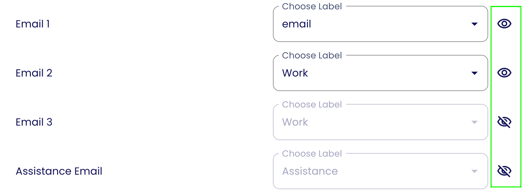
Rename Labels:
Contact attributes (e.g., phone numbers or email addresses) are assigned labels in the vCard, such as “Work”, “Mobile” or "Private".
You can customize these labels in the configurator:
- Choose from existing standard labels
- Or create your own custom labels
Important Notes:
-
Note 1: Not all devices support custom labels.
Especially on Android and in Outlook, your custom labels may be replaced with default ones. -
Note 2: Make sure similar attributes use different labels (e.g., for multiple phone numbers, emails, or addresses).
Otherwise, Outlook may run into issues during import.- Example: If “Address 1” and “Default Address” have the same label (or both are custom-named the same), Outlook may only display one address.
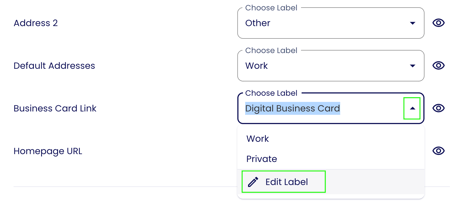
- Example: If “Address 1” and “Default Address” have the same label (or both are custom-named the same), Outlook may only display one address.
Edit Notes:
You can configure a custom text that will appear in the “Notes” section of the vCard.
The following placeholders are available:
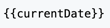 Inserts the date when the contact was downloaded
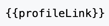 Inserts the link to the digital business card
The note can be configured in any available language.
Show Links:
Here you can define whether links from your digital business card profile should also be included in the vCard.
This can be configured separately for:
- The vCard of the online QR code
- The vCard of the offline QR code
This allows you to control which information is shared depending on the use case.
Convert Special Characters in vCard:
Enable this option to automatically convert special characters such as ä, ö, and ü into ae, oe, and ue. This ensures that the vCard can be correctly read by older versions of Outlook.