.svg)
In this article, you’ll learn why profile updates made through the Bulk Actions may not always be applied correctly — and why certain fields might be deleted in the process.
1. Updating profiles via bulk upload
If you want to update multiple profiles at once, you can use the Update Profiles option within the Bulk Actions.
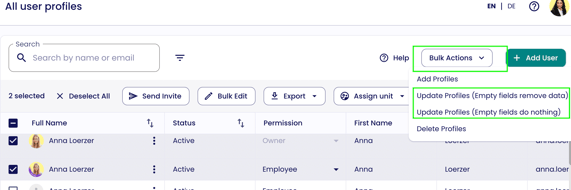
A detailed step-by-step guide can be found in our user creation help article under section 2. Bulk creation via Excel uploader.
2. Updates are not applied correctly
If changes from the bulk upload are not applied as expected, this is often due to the selected upload mode.
Default setting: destructive
-
By default, the bulk upload method is set to destructive.
-
This means: Empty fields in your Excel/CSV file will overwrite and delete existing fields in the profile.
-
Therefore, all relevant fields in the file must be filled in to ensure the update is applied correctly and completely.
Alternative setting: append
-
The method can be changed to append.
-
In this mode, only fields that contain values in the Excel/CSV file will be updated.
-
Empty fields remain untouched and do not overwrite existing profile information.
3. Important note
The selected bulk upload method applies globally to the entire account — not to individual users and not per upload.
4. Check or change your bulk upload method
If you would like to know which method is currently active in your account, or if you would like to switch to a different mode, please contact our support team: support@lemontaps.com