.svg)
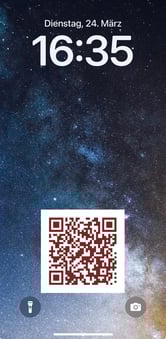
With QR code wallpapers, you can display your QR code for your digital business card directly on your smartphone.
Others can scan it and instantly access your profile or contact details.
The QR code wallpapers are automatically generated by Lemontaps – you don’t need to create them yourself.
Once created, you can set the image as your lock screen wallpaper.
Download QR Code Wallpaper (End User)
How to download your personal QR code wallpaper:
- Open: https://lemontaps.com/share-profile
- Go to the “QR Code Wallpapers” section
- Select “Smartphone Wallpaper” at the top
- Choose whether you want an online or offline QR code (see below for details)
- Select a background image or upload your own
- Define the QR code position (top, center, bottom)
- Download the wallpaper
Set QR Code as Lock Screen Wallpaper
Once downloaded, you can set the QR code wallpaper as your lock screen so it is always visible.
Apple iPhone / iPad
- Download the wallpaper

- Open the Photos app and select the image
- Tap the share icon (bottom left)
- Select “Use as Wallpaper”
- Adjust the position (zoom, move)
- Tap “Set” → choose Lock Screen or Both
- Done! Your QR code is now visible on your lock screen.
Android Devices
- Download the wallpaper
- Open your Gallery or Photos app
- Select the image
- Tap menu/options (three dots) → “Set as wallpaper”
- Choose Lock Screen or Home & Lock Screen
- Adjust the position
- Confirm with “Set” / “Apply”
Export QR Code Wallpapers for Your Team (Admin)
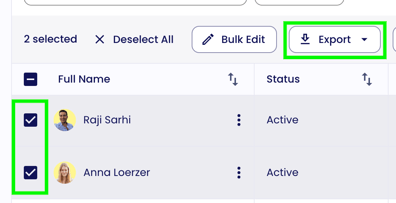
As an admin, you can export QR code wallpapers for multiple users:
- Go to User Management → All user profiles
- Select the desired profiles
- Click “Export”
- Choose “Smartphone Wallpaper”
The wallpapers will then be generated and downloaded.
Configure QR Code Wallpapers for Your Team
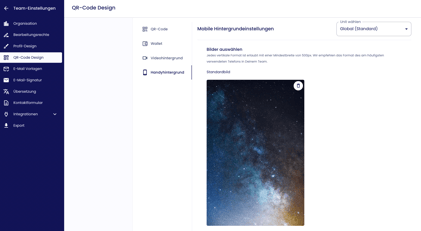
- Go to the smartphone wallpaper settings
- Replace the default image. This image is used for exports and shown first to end users
- Supported formats: SVG, PNG, JPG, GIF
- Size: Choose dimensions based on the most commonly used smartphone screen sizes in your company.
-
Optional - Additional Images: You can upload additional background images for users to choose from here.
Note: You can also define the QR code color under “QR Code Design”.
(See the QR code design article for more details.)
Online vs. Offline QR Code
You can define how your QR code behaves. More information in this video.
Online QR code:
- Opens your Lemontaps profile directly in the browser
- Always up to date
- Requires an internet connection
Offline QR code:
- Opens the contact file (vCard) directly
- Must be regenerated if profile data changes
- Works without an internet connection