.svg)
If you see the message “Approval Required” during SSO login, it is usually caused by missing permissions or blocked user consent.
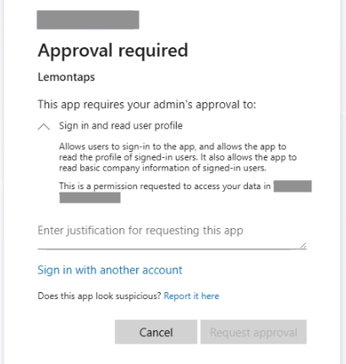
Typical scenario:
SSO has been fully set up, users enter their email address and are redirected to the SSO login – but then the message “Approval Required” appears.
In this article, you’ll learn how to resolve this issue.
1. Grant admin consent
Missing admin consent is the most common cause of this message.
Steps:
- Navigate to: Enterprise Applications → Permissions (under “Security”)
- Click on: “Grant admin consent”
Note:
You can also find instructions in step 11 of our setup guide.
2. Check user consent
If users are not allowed to give consent, the “Approval Required” message may also appear.
Relevant setting: “User consent for applications” → Allow user consent
Steps:
- Navigate to: App registrations or Enterprise Applications
- Look for: “User consent for applications”
- Ensure that user consent is enabled → Allow user consent