.svg)
With Lemontaps, you can link NFC cards to user profiles in bulk using an Excel or CSV file. This method is especially useful for larger orders (50+ cards) and saves time during assignment.
1. Order process:
Select Excel linking
When ordering NFC cards via the order form in the Admin View:
- In step “2/6: Material selection” → Select a quantity of “over 50”
- You will be redirected to step “3/6: Info: Link NFC cards with profiles”
- Activate the checkbox for Excel linking
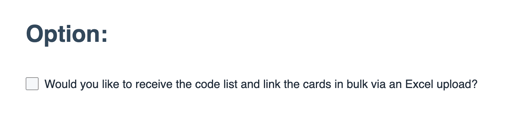
In the next step “4/6: Upload design”, you will be asked to upload an Excel file.
Required column:
-
Account email address (mandatory for linking)
(also required if profiles are not yet created)
Optional columns:
- Employee name → if the name should be printed on the card
- Number/ID column → to clearly assign cards to profiles (e.g. card numbers)
Prepare your Excel file
You can export the required data directly from Lemontaps:
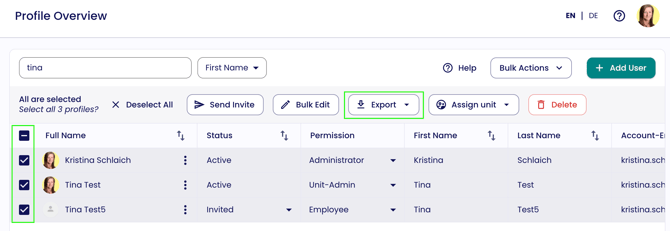
- Go to User Management → All user profiles → Export → Excel
- Export only the users for whom NFC cards should be linked
- The file already contains the account email addresses
Then:
- Add optional columns (e.g. name or card number/ID)
- Carefully check that all data is complete and correct
- Errors or missing data may lead to incorrect assignments
- Download the file
- Upload it in step “4/6: Upload design” in the order process
💡 Note:
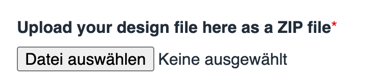
Please upload your design files (PDF, AI) and font files (TTF, OTF) at the same time, ideally combined in a ZIP file.
2. Upload via Bulk Uploader
Once your cards have been produced, you will receive an Excel/CSV file containing the NFC card codes. Upload this file using the Bulk Uploader.
Steps:
- Open the Excel importer:
User Management → All user profiles → Bulk Actions → "Update profiles (empty fields will be ignored)"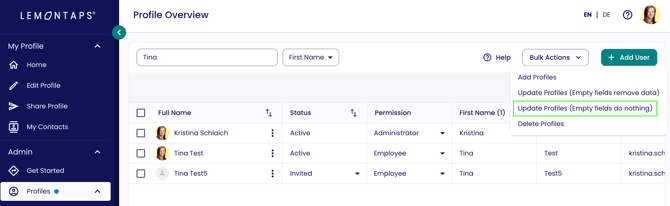
- Upload the Excel/CSV file in the popup
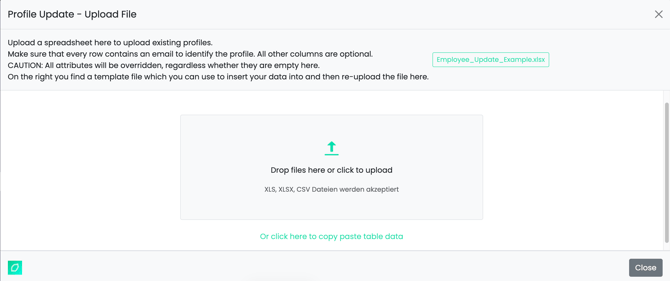
- Map the columns to the correct profile fields
Important: Map the NFC card code column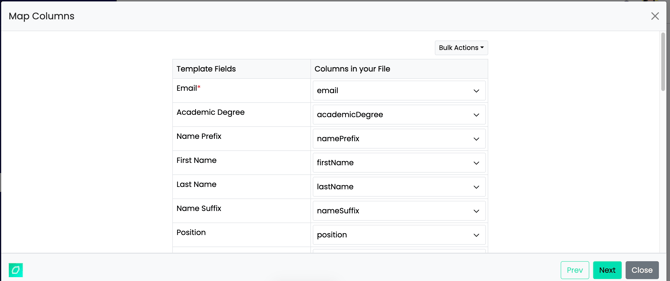
- Review the data and start the import
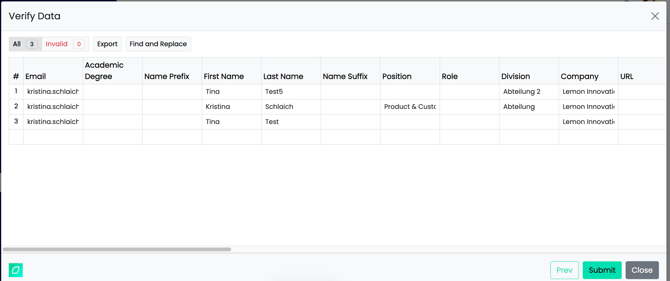
The uploader uses the following fields to assign cards automatically:
- Email address
- NFC card code
After a successful upload, all NFC cards are correctly linked and ready to use.
Important upload behavior
- Empty fields are ignored → existing profile data remains unchanged
- Only filled fields are updated
- The upload can be repeated at any time to make changes
For a detailed guide on the Bulk Uploader and additional features, see the related article here.
3. Important notes
- Feature available for wooden and plastic cards (orders of 50+ cards)
- Ensure all email addresses are correct → otherwise, no assignment will be possible
- If no mapping is provided, cards will not be linked automatically and no code list will be shared