.svg)
Prerequisites: Administrator · Sales Add-on
Voice note results, including transcripts and AI Action results, can be exported to your CRM as note activities. If the contact does not yet exist in your CRM, it will be created first. Otherwise, only the note will be added. This way, you can access the conversation details from your voice notes directly in your CRM without having to transfer them manually.
What the Export Looks Like
Depending on your settings, each exported voice note contains the transcript and AI Action results. It also includes a link that takes you directly to the voice note associated with the contact in Lemontaps.
- HubSpot: In the contact's notes, labeled "Note created via Lemontaps"
- Salesforce: Under "Notes" in the contact record, labeled "Voice Note". If the note is not visible yet, refresh the page.
- Pipedrive: Under "All" or "Notes" in the contact record
- Microsoft Dynamics: In the contact's notes
Available Settings
To access the settings:
- In the Admin Dashboard, go to Contacts → CRM Integration.
- Click More Settings.
- Scroll down to section 6, "Voice Notes".
- Configure your preferred settings and click Save.
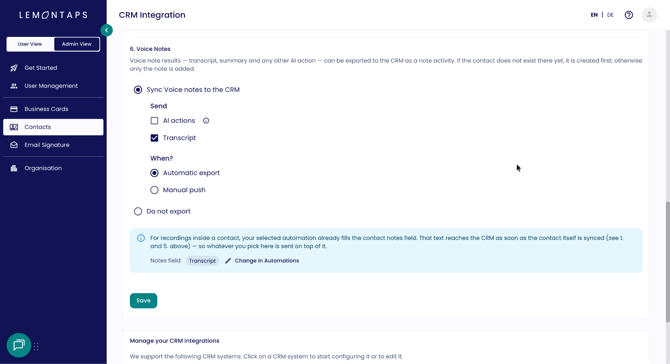
Sync Voice Notes or Don't Export
- Sync Voice Notes with CRM: Voice notes are transferred to your CRM. You can then configure what content is sent and when.
- Don't Export: Voice notes are not transferred to your CRM.
The voice note's audio recording itself is not exported. Only the transcript and/or AI Action results are transferred to your CRM.
What Gets Sent
Under "Send", you can choose which voice note content is exported. You can enable one or both options:
- AI Actions: Results from AI Actions, such as summaries or follow-up emails
- Transcript: The complete spoken text
If AI Actions is selected, the results of all active AI Actions are exported together in a single note in your CRM. For example, if five AI Actions are active, the note will contain all five results.
To learn more about AI Actions, which ones are active, and how to configure them, check out the article Set Up Automations for Contact Capture and Voice Notes, under the section "AI Actions for Voice Notes".
Note: If "Automatically Fill Notes Field" is configured in the automations to insert the transcript or a summary into the contact's notes field, and "Also Export All Voice Note Actions (Configured Above)" is selected for manual exports, this content will be transferred twice when exporting the contact: once through the contact's notes field and once as a separate note.
You can see which setting is active for the notes field in the blue information box below the options.
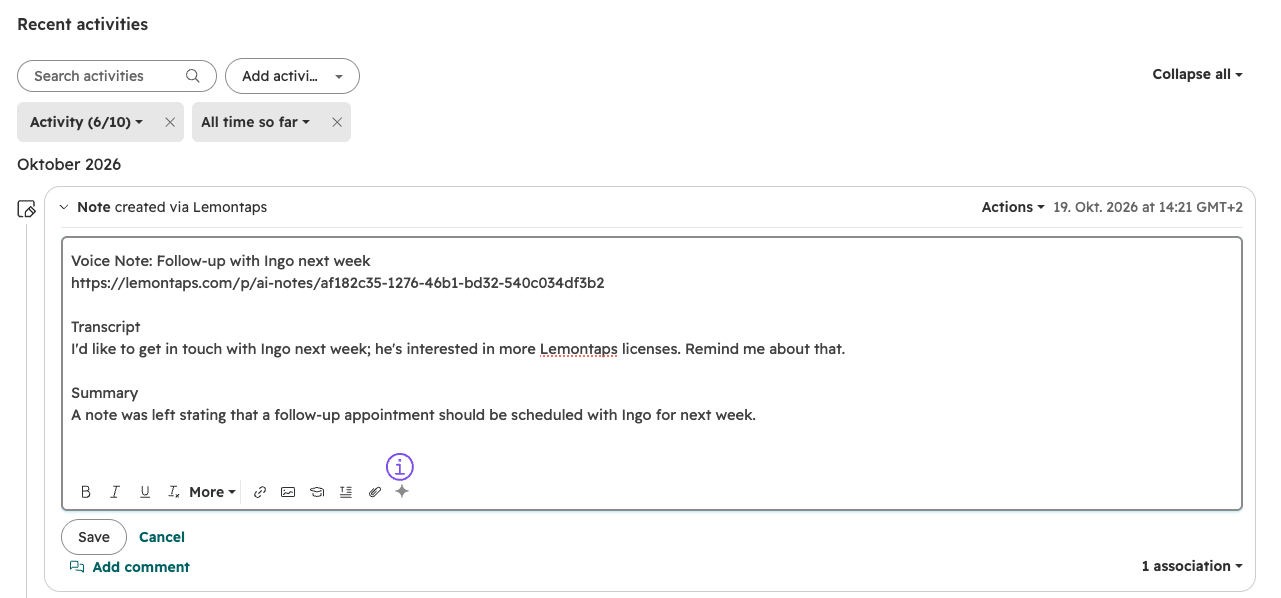
Example: HubSpot
Automatic Export vs. Manual Export
Under "When?", you can choose how voice notes are transferred to your CRM:
- Automatic Export: As soon as a voice note is assigned to a contact, it is automatically exported to your CRM.
- Manual Export: Voice notes are only transferred to your CRM when you export them manually.
Settings for Manual Export
Behavior When Exporting a Contact
When Manual Export is selected, you can also define what happens when a contact (not a note) is exported:
- Also Export All Voice Note Actions (Configured Above): When exporting a contact, its voice notes are also exported with the content selected under "Send".
- Only Send Contact – Voice Notes Must Be Exported Separately: Only the contact is transferred. Voice notes must be exported separately.
How to Manually Export Voice Notes
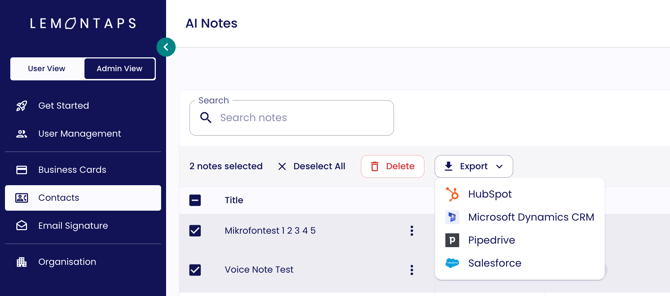
If Manual Export is selected, you can export voice notes from the AI Notes overview. This works both in the browser and in the app. Only voice notes assigned to a contact can be exported.
- Open AI Notes or, in the Admin Dashboard, go to Contacts → AI Notes.
- Select the voice notes you want to export. You can select multiple voice notes at once.
- Click Export in the top menu bar.
- Select your preferred CRM system from the dropdown menu.
Whether end users can also export voice notes depends on the CRM export permission configured under Roles & Permissions.