.svg)
In this article, you’ll learn how to correctly link a Lemontaps NFC business card to a user profile as an administrator - either via smartphone or via the Management Platform.
Note: The linking of NFC cards to other user profiles can only be performed by administrators.
Linking via smartphone
1. Scan the QR code or NFC card
-
Open the camera app on your smartphone.
-
Hold the camera over the QR code on the card or tap the NFC card to your phone.
-
You will be automatically redirected to the linking page.
Important note: With some NFC cards—such as cards with a white QR code, wooden cards, or low-contrast designs—laptop cameras may have difficulty recognizing the code.
Recommendation: Use your smartphone camera, as it is usually much more reliable.
2. Link as an administrator
-
Tap “Link card as administrator”.
-
Select the desired user profile.
-
Click “Confirm” to link the card to the selected profile.
Linking via the Management Platform
Administrators can also manually assign NFC cards to users via the Management Platform:
-
Log in to the Lemontaps Management Platform.
-
Navigate to: Admin View → User Management → All user profiles → Profile Overview.
-
Search for and select the desired user by clicking on the name.
-
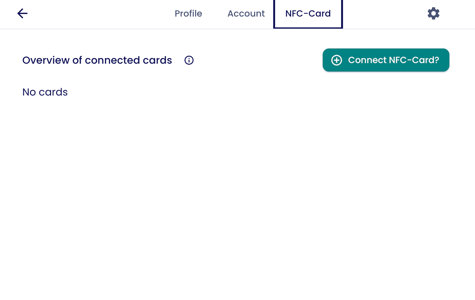
In the top-right corner, open the “NFC Card” tab.
-
Add a new card or link an existing NFC card to the profile.
Viewing NFC Card connections in the Admin View
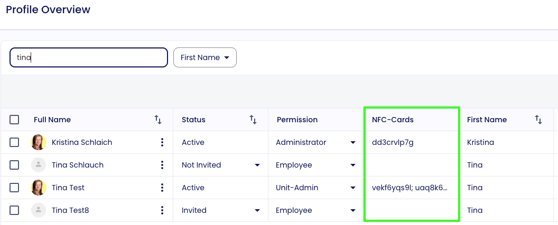
Administrators can view in the profile overview which user profiles are linked to an NFC card and which are not.
-
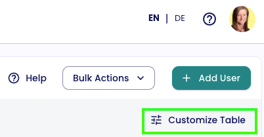
To do this, add the “NFC Cards” column via “Customize Table” if it is not yet visible in the overview.
-
The corresponding field in the column will display the NFC card code if a card is linked to that profile.
-
If a profile is linked to multiple cards, all codes will be shown in this field.
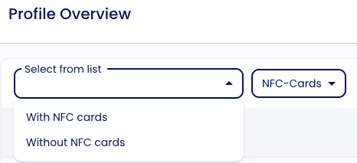
Using the filter in the top left, you can easily identify which user profiles are linked to an NFC card and which are not.
-
Select “NFC Cards” as the filter and then choose either “With NFC Cards” or “Without NFC Cards” in the “Select from list” field.
Administrators can also check within an individual user profile whether an NFC card is linked:
-
Log in to the Lemontaps Management Platform.
-
Navigate to: Admin View → User Management → All user profiles → Profile Overview.
-
Search for and select the desired user by clicking on the name.
-
In the top-right corner, open the “NFC Card” tab.
-
There, you can see whether an NFC card is already linked to the profile and you also have the option to unlink a card or link new ones.