.svg)
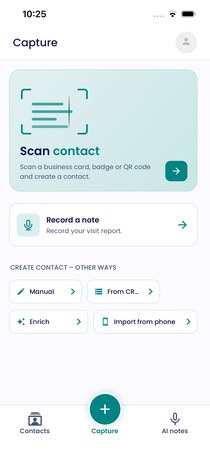
When you open the Lemontaps app, you will land directly on the contact capture screen. From here, you can scan cards, record notes, or create contacts—all in one place. This can vary depending on your visibility settings.
The Home Screen: Contact Capture
You can return to contact capture at any time using the central button in the navigation bar. There are three options:
- Scan card: Choose between business card, badge, and QR code. For more information, see the article Universal Business Card Scanner.
- Record note: Record conversation details directly as a voice note, even if the contact has not been created yet. For more information, see the article AI Notes: Record, Manage, and Assign Voice Notes to Contacts.
- Create contact: Create a contact manually, select one from your CRM, enrich a contact using their company and name, or import a contact from your phone’s address book.
Navigation
The bottom navigation bar contains three sections:
- Contacts (left): Your contact overview. Use the plus icon at the top to add new contacts. Tap a contact to view their contact information and history.
- Contact Capture (center): The home screen with all available contact capture options.
- AI Notes (right): All your voice notes. Use the plus icon at the top to record a new note.
Profile and Additional Options
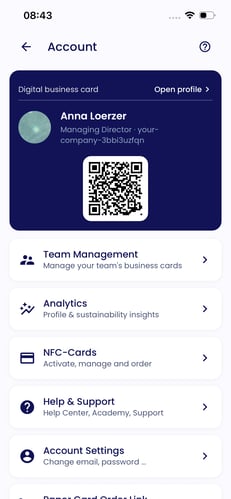
You can access your profile by tapping your profile picture at the top of the home screen. Here you will find:
- your digital business card
- Open profile, where you can edit your profile as usual, access your QR code, and use Preview to see what your profile card looks like
- additional options such as team management and analytics
- Log out to sign out of your account