.svg)
With platform visibility, you can control which features in Lemontaps are visible and accessible to your users.
These settings can also be configured individually per unit.
This allows you to tailor the platform to your specific use cases and hide unnecessary features.
Why use platform visibility?
Adjusting visibility helps you to:
- simplify the user interface
- provide only relevant features
- prevent user errors
Where can I find the settings?
Organisation → Platform VisibilityHere, you can hide specific pages or elements for both end users and administrators.
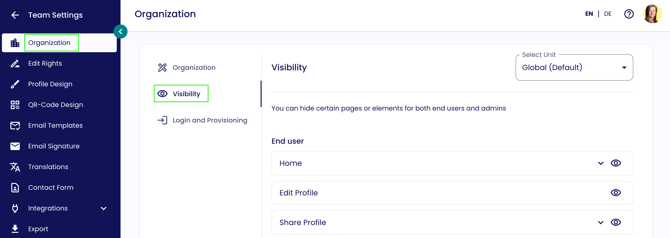
Simply click the “eye” icon to show or hide elements.

To get more information about a specific element, click the exclamation mark icon.
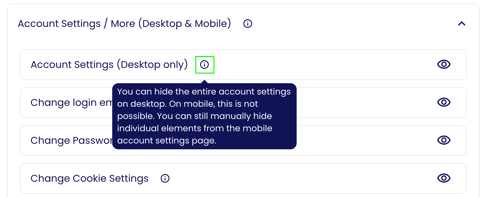
Overview of all elements that can be shown or hidden
For end users:
-
Home
-
Your digital business card
-
Share profile
-
Download app
-
NFC cards
-
Analytics
-
First steps & Academy
-
Recent contacts
- Paper Business Cards
Note on paper business cards: The widget is only displayed if the ordering system has been set up for your organisation. If it has not been configured, the home tile will remain hidden even when the setting is enabled. The widget is visible on mobile, but not in the native app.
-
-
Edit profile
-
Share profile
-
Online option (QR code / Wallet)
-
Offline option (QR code / Wallet)
-
Google Wallet
-
Apple Wallet
-
Profile link
-
QR backgrounds
-
NFC cards
-
Copy email signature
-
-
My contacts
-
Contacts table
-
Business card scanner
-
- AI Notes
-
Account settings
-
Account settings (desktop only)
-
Change login email
-
Change password
-
Change cookie settings
-
Change account language
-
Team management (mobile only)
-
NFC cards (mobile only)
-
Analytics (mobile only)
-
Add to home screen (mobile only)
-
Help (mobile only)
-
Paper business card order system
-
Form links
-
External links
-
For admins:
-
Get started
-
Requests
-
Units
-
Contacts
-
AI Notes
-
Analytics
-
Cards
AI:
-
Contact enrichment
-
AI notes
-
Fair badge scanner
-
Business card scanner
Typical use cases and impact
1. Online-only usage
If you only use digital (online) business cards:
- Disable offline options
- Hide NFC / QR code (offline)
Important:
If you use online features, make sure the corresponding email templates are active:
- Invitation email to employees
- Email to new contacts
- Wallet email
2. Disabling AI features
AI-powered features can be disabled at any time. Below is an overview and the impact of disabling them:
-
Contact enrichment: no automatic enrichment of contact data
-
Voice notes: no longer available, only text notes
-
Fair badge scanner: no longer available
-
Business card scanner: still works, but only as a standard OCR scanner with lower accuracy