.svg)
Requirements: All users · Sales Add-on · Access to Exports: Administrator, Unit Admin (exports of their own unit)
You can export your contacts as an Excel or CSV file. If you like, the export can also include all related files such as attachments, signatures, profile pictures and images of scanned business cards – bundled in a ZIP file.
Export contacts
- Open the contacts overview:
- As an end user, you can see your own contacts in your contacts overview.
- In the Admin View, go to Contacts to see the contacts of your organization. As a Unit Admin, you see the contacts of your unit.
- Use the checkboxes to select the contacts you want to export.
- Click Export.
- Choose the format: Excel or CSV.
- In the pop-up, choose what to export:
- Contact data only: The export contains only the contact data.
- Include attachments and images: The export also contains all related files and images.
- Click Confirm export.
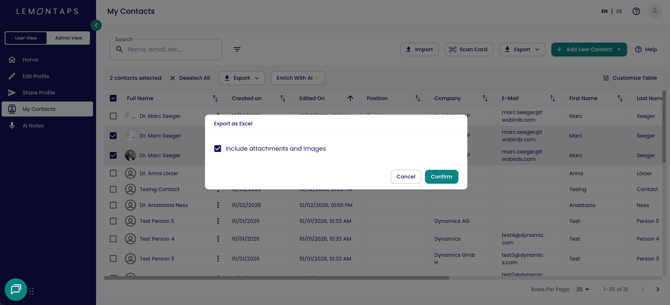
Export with contact data only
If you select contact data only, the Excel or CSV file is downloaded right away.
Export including attachments and images
If you include attachments and images, a message appears after you confirm, telling you that the export will be sent by email. The email is sent to the email address linked to your Lemontaps account.
- Open the email telling you that your contact export with attachments is ready.
- Click Download.
- The export is downloaded as a ZIP file.
The download link in the email does not expire. There is no limit on the number of contacts or the file size.

Access exports in the Admin View
In the Admin View, you can find all contact exports in one place.
- Switch to the Admin View.
- Open User Management → Exports.
- Under Recent contact exports, you can see the most recently created exports.
- Download the ZIP file of the export you need.
- Unzip the file and open the Excel or CSV file inside.
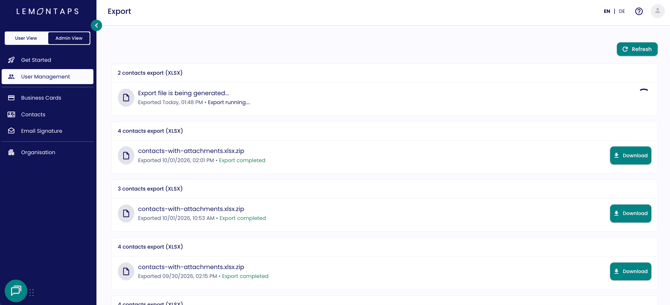
Structure of the ZIP file
The ZIP file contains:
- the Excel or CSV file with the contact data
- folders with the related files, e.g. profile pictures and business cards
The files are numbered consecutively, starting with 1. Each file name contains the number, the name of the related contact and the file type (e.g. profile picture or business card).
In the Excel or CSV file, the corresponding columns contain the file name of each file. This lets you match every file to the right contact.
Which files are exported?
The export includes all files and images linked to a contact:
- uploaded attachments, e.g. PDFs
- signatures
- profile pictures
- images of scanned business cards