.svg)
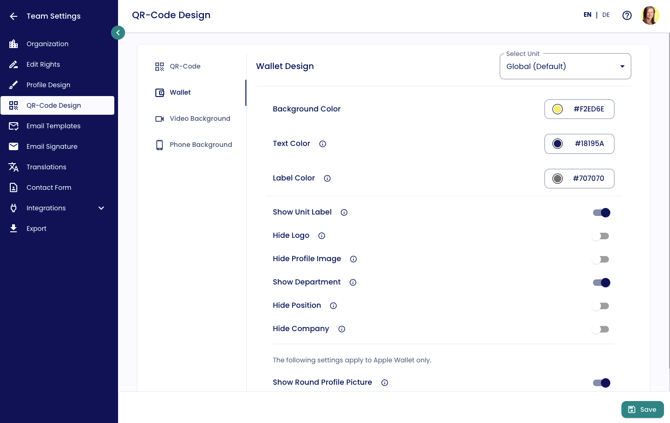
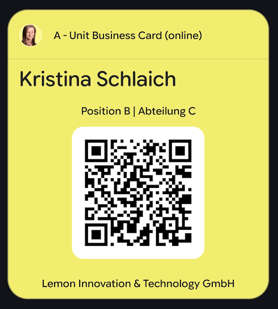
In the Wallet Configurator, you can define how your wallet business card is displayed.
Important:
Admin permissions are required, and the configurator is only available in paid plans.
Customizable features
-
Unit-specific design: You can override the default design for specific units by creating a separate configuration.

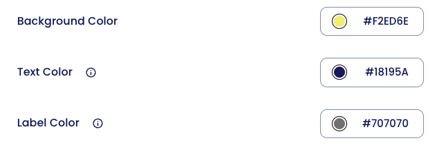
- Background color
- Text color (Apple Wallet only)
- Label color (Apple Wallet only)
You can choose which fields are displayed or hidden in the wallet:
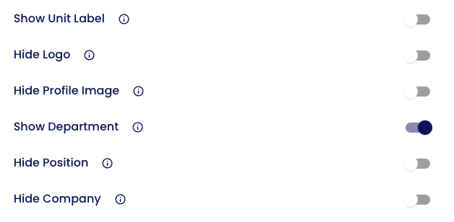
- Unit Label (If hidden, the organization name will be shown instead)
- Logo (Taken from the digital business card and cannot currently be customized specifically for the wallet; Note: for Google Wallet, the logo is automatically hidden when a profile picture is set, as Google Wallet only supports one image at a time)
- Profile Image
- Department
- Position
- Company
- Online/Offline status (Indicates whether it is the online or offline version) - more details here.
Apple Wallet vs. Google Wallet:
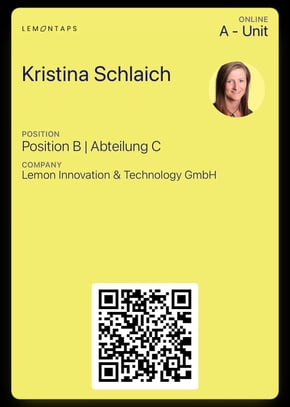
Apple Wallet – specific settings:
The following options are only available for Apple Wallet:
- Display profile picture as round or square
- Show or hide academic title
Important limitations:
Design options are limited by Apple and Google:
- QR code: The color is predefined and cannot be changed
(always black on a white background) - Images: Custom images such as banners or background images cannot be added
- Font size: Automatically adjusts depending on the length of the name or position
(no manual control possible)
FAQs:
Why does the logo appear distorted in Google Wallet?
Unfortunately, Google automatically processes images in Google Wallet in a way we cannot control or override. As a workaround, we recommend hiding the logo in the Wallet entirely.